Advanced audio features
On top of its Signal Processing Suite, Audirvāna offers advanced audio features accessible from the Audio settings dashboard including high performance upsampling algorithms and an exclusive Audio Scan which allows you to check the true resolution of your audio files.
All active settings are visible on the audio settings dashboard and can be modified in the control panel with comprehensive in-app assistance. Settings are associated to the connected Device, and automatically memorized.
Upsampling
- Ability to upsample all audio streams before playback
- Two high-performance algorithms available: SOX and R8 Brain
- Custom settings for frequencies and filters including DSD
Read more
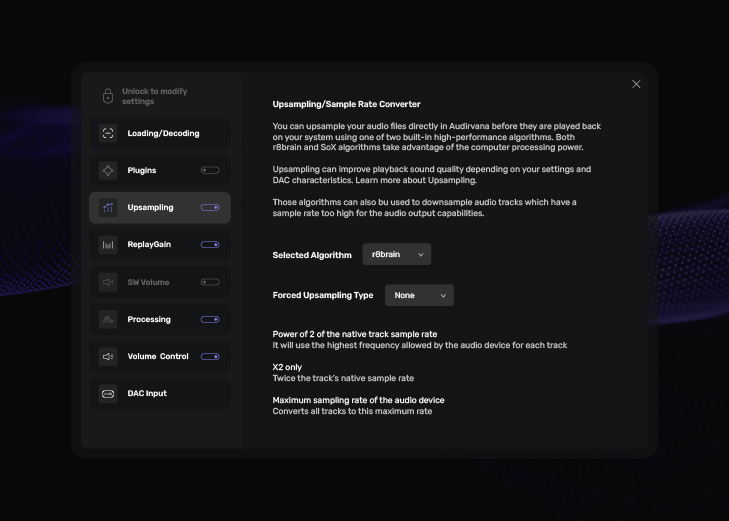
You can oversample your audio files directly in Audirvāna before playback on your system, using one of the two built-in high-performance algorithms: SOX (SoundExchange) and R8 Brain. This can improve sound quality, sometimes quite noticeably, depending on your system’s converter and the settings you choose.
Indeed, almost all DACs today on the market operate on a very-high-frequency switching-principle with a resolution of only a few bits. They therefore systematically oversample the signal just before the actual conversion, but work with limited computing power and more or less powerful algorithms, particularly for chip-cost and latency reasons.
You can use Audirvāna to carry out this operation upstream: it will benefit from the computer’s much greater computing power, and with a high-performance algorithm. This can help the DAC perform at its best in most cases.
The settings associated with each algorithm are slightly different, but both will allow you to define the multiple of the sampling rate to be applied (x2, x4 etc.) as well as to fine-tune various filters, essentially to neutralize the artifacts that result from these operations.
Audio Scan
- Expected vs ‘true’ audio quality detection
- Sampling rate and bit depth analysis
Read more
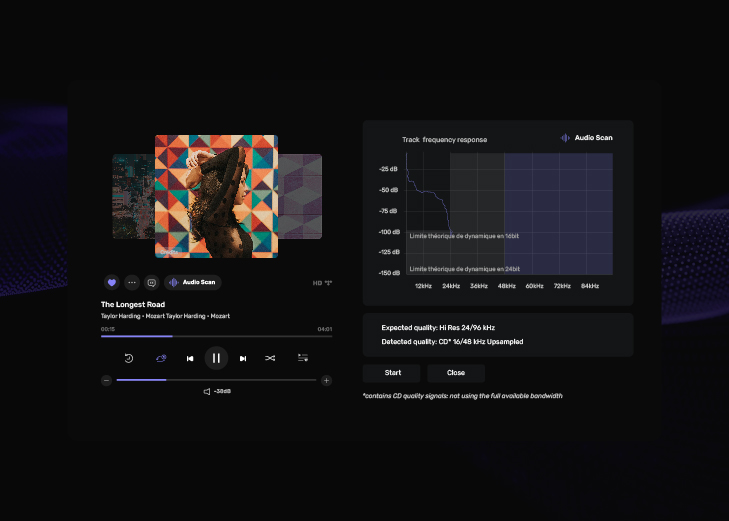
The Audio Scan analyses the audio content of the track played and therefore is only available during playback.
It is based on an algorithm which reveals its actual resolution and checks if it matches the audio quality featured in the file metadata.
The graph displays the frequency response of the audio track, i.e. the average loudness (dB) in the recording for each frequency (kHz). Loudness is expressed in negative dB (logarithmic) scale vs max nominal value =1. Low frequencies usually have the highest energy level across the frequency range, thus the graph usually shows a decreasing slope from left to right.
Depending on the resolution of the track, this response is contained within an area (grey zones). The average loudness for a frequency can get below the theoritical limitation because it is an average value.
A sharp drop around 22kHz is typical of oversampled CD quality recording, since the maximum frequencies reproduced in a song are equals half the sampling rate.
The scan results displayed in the frame contains the following informations:
Expected Quality: The quality (resolution and format) featured in the track’s audio file format.
Detected Quality: The analysed quality depends on the actual bit resolution, frequency resolution and channel configuration:
It appears in purple with check sign when Expected quality and Detected quality actually match. Note that the Audio Scan algorithm is not capable to confirm matching for sampling rates above 192kHz, DSD format and multichannel tracks, and has only access the first unfolding of MQA files.
Detected quality can be:
– MP3 when lossy compression is involved with equivalent resolution in kb/s
– Not HD when bitdepth is below 16 bits
– CD quality (Redbook) when matching 16 bit and 44,1 KHz/48kHz, stereo channels
– SemiHiRes meaning the mix contains non-HiRes elements
– HiRes when bitdepth is equal or superior to 24 bit, stereo channel
The information provided to understand why there is or there is not a match is:
Bit depth: Analyses the actual bit resolution of the audio file.
Bandwidth: Returns the actual frequency extension of the track. A note indicates if it has been upsampled.
Channels: Checks the channel content integrity of the audio file. It looks for the following potential issue: – Silence if one channel is silenced – Mono if both channels are the same – Out of phase if the channels are inverted.
DC Issues: This feature detects if there are constant parts in the audio file.
Audio plugin integration
- Activation of up to 4 plugins into the audio processing flow
- AudioUnits Formats under MacOS and VST3 under Windows
- Realtime monitoring

ReplayGain & Software Volume control
- ReplayGain option to harmonize a playlist volume
- Recalculation option of the volume adjustment for your local library
- High quality software volume control (backup for your audio device volume)
Read more
The Replay Gain function allows you to automatically adjust the volume of tracks being played to maintain a consistent listening volume.
This adjustment is made based on a sound level reference specific to each song, following EBU R128 and DR standards. For tracks in the Local Library, Audirvāna can calculate this adjustment if it is not directly available in the metadata of the track. For tracks streamed from a Partner service, you can apply Replay Gain to tracks if this service makes this information available (e.g., TIDAL or QOBUZ).
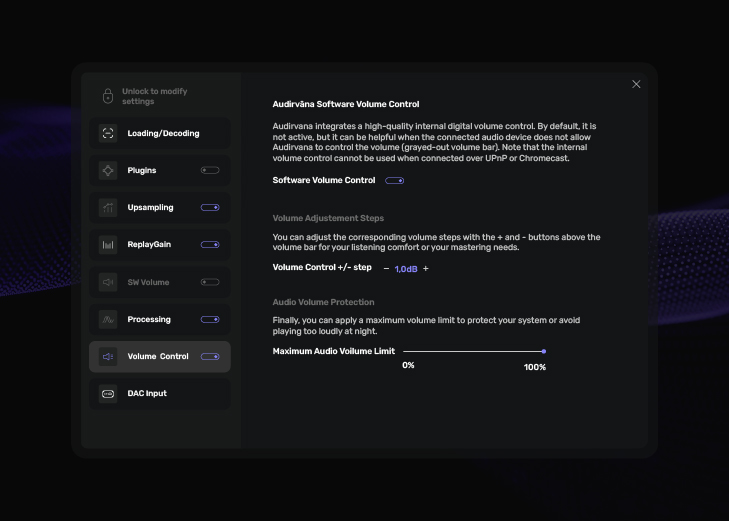
Most devices have a volume control, either analog or – increasingly – digital. When this setting is controllable by Audirvāna, it is visible with the volume bar in the software, and you can adjust it thru the application.
If this is not the case, you can always adjust the volume outside of Audirvāna using directly the interface or volume knob of your device.
However, Audirvāna offers a very high quality internal digital volume control. It is disabled by default, but you can enable it in the software’s audio settings.
In this case, Audirvāna performs the attenuation calculations before sending the data stream to your device. However, it is preferable to only use one at a time. If you use the Audirvāna internal volume control, it is best to set the volume of your device to its nominal volume, i.e. the volume at which it neither attenuates nor increases (= 0 dB).
Please note that this feature is only available when your device is connected via USB. When connected via UPnP/DLNA the large buffer creates a latency incompatible with this service (time lag).