Signal Processing Suite
Audirvāna Studio provides you with a set of professional-quality audio signal processing tools to tailor the sound to your listening conditions. Whether you listen with headphones or speakers, in stereo or multichannel, you can optimize sound playback by recreating spatiality, linearizing a device’s frequency response, reducing acoustic defects, or compensating for the constrained positioning of your device. It’s up to you.
Parametric EQ
- 10-band
- Stereo and multichannel
- Fully configurable from the Remote control App
- Presets associated with each output device
Read more
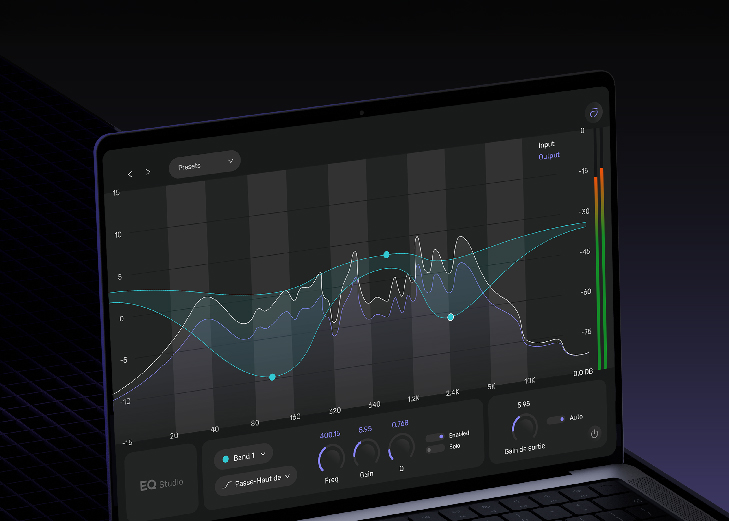
The Audirvāna parametric Equalizer has up to 10 stereo and multichannel audio bands. The filter settings apply to all channels.
The EQ interface explains the types of filters available (Peak, Notch, Shelf, Low and High Pass etc.). The Audirvāna Equalizer is for PCM audio only, not DSD. Active EQ Settings save automatically for each output device. If you save a preset, they are stored locally on your computer.
When Real-Time monitoring is activated, you can adjust the settings’ effect on the audio signal on the fly. Note that this mode is unavailable during UPnP playback and when playing DSD files. We recommend deactivating the real-time monitoring once the settings are optimal for audio playback quality.
Convolution engine
- Stereo or multichannel
- Compatible with WAV, AIFF, FLAC impulse response files
- Automatic Conversion of Impulse response if required
- Advanced mapping available for multichannel
- Crossover capability
Read more
Convolution is a digital process that can perform speaker and room acoustic correction. It works with pre-calculated filters called ‘impulse responses’ that you can make based on your room measurements. They are both free and pro software to create an ‘impulse response’ with a calibrated microphone (see for example REW and rePhase).
Accepted impulse response file formats include WAV, AIFF, FLAC. You can provide several impulse responses for each speaker at different sample rates (44.1 kHz, 48 kHz, etc) and load them individually or in a Zip file. There is no limit to the number of channels. We use the high-quality sample rate converter r8brain to adjust your impulse responses when playing a track whose sample rate doesn’t match your filters.
Advanced settings for multichannel mapping is accepted by adding a Convolver config file with the extension ‘.cfg’. Expert web resources will help you to configure it (e.g. Convolver sourceforge.net).
Convolution needs heavy computations. It is not available ‘realtime’ mode due to optimization needs. Our convolution engine runs fast on CPU with high quality numeric precision. You don’t need a graphic card to activate this option.
Crossfeed
- 3 modes available with or without delay and central channel
- Virtual speaker position emulation
Read more
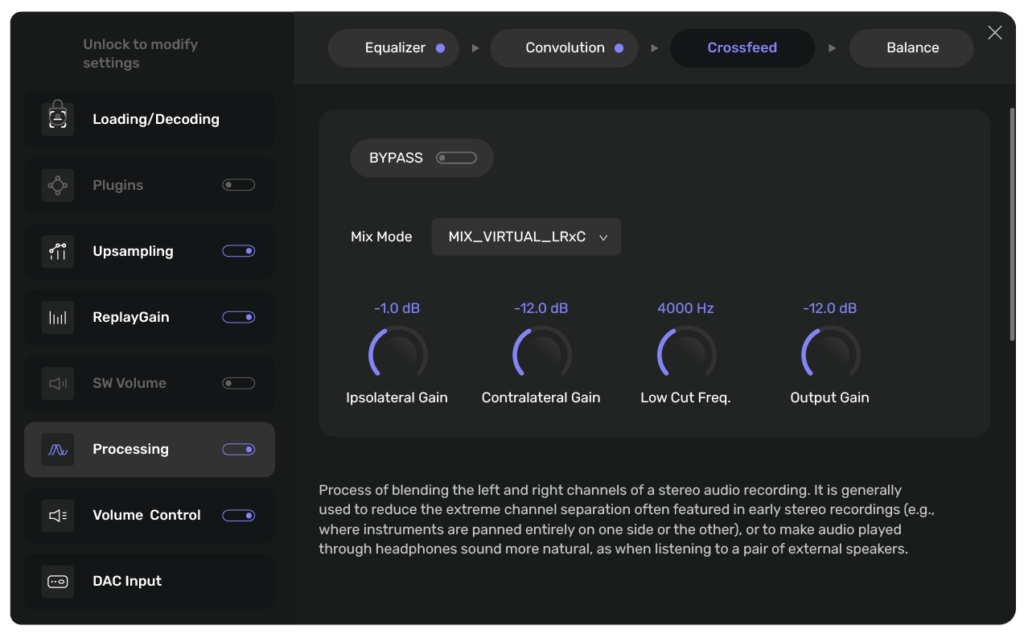
Crossfeed is the process of blending left and right channels of a stereo record to to get a more natural experience through headphones (put the sound stage back in front of you). This reduces also the extreme channel separation featured in some early stereo recordings where instruments were mixed on one side only.
They are 3 modes available:
‘Flat Mix’: Mixes left and right channels without effects.
‘Virtual LR’: Simulates the delay between left and right speakers.
‘Virtual LR+C’: Like ‘LR’ but adds a central speaker to stabilize voices and soundstage.
In Flat mix mode, the contralateral gain defines the level of signal from a channel sent to the opposite ear (contralateral ear).
Virtual modes emulate a virtual speaker position, where the signal of the right speaker reaches the left ear with a delay and attenuated trebles (indirect sound projection reproduced with a low-pass filter) and vice versa.
Virtual position is based on the distance from the listening point (in meters) and on the angle between the two speakers from this point. The Low Cut Frequency adjusts the level of mids and trebles to balance richness of information and avoid stereo confusion.
Balance
- Stereo or multichannel
- Gain and and Delay adjustments
Read more
Allows to manage gain and delay of each channel to customize your sound environment to achieve a richer, more immersive audio experience. This adjustment helps to ensure that sound is evenly distributed to compensate for an asymmetrical speakers positions in the room.
Gain: Change the volume level of each speaker/channel individually. For instance, if one speaker is closer to you, you can reduce the gain to avoid overpowering the other speaker.
Delay: Synchronize the sound coming from each speaker and ensures that both channels reach you at the same time, improving the overall sound stage. For instance if one speaker is farther away than the other, you can introduce a slight delay in the audio coming from the closer one.